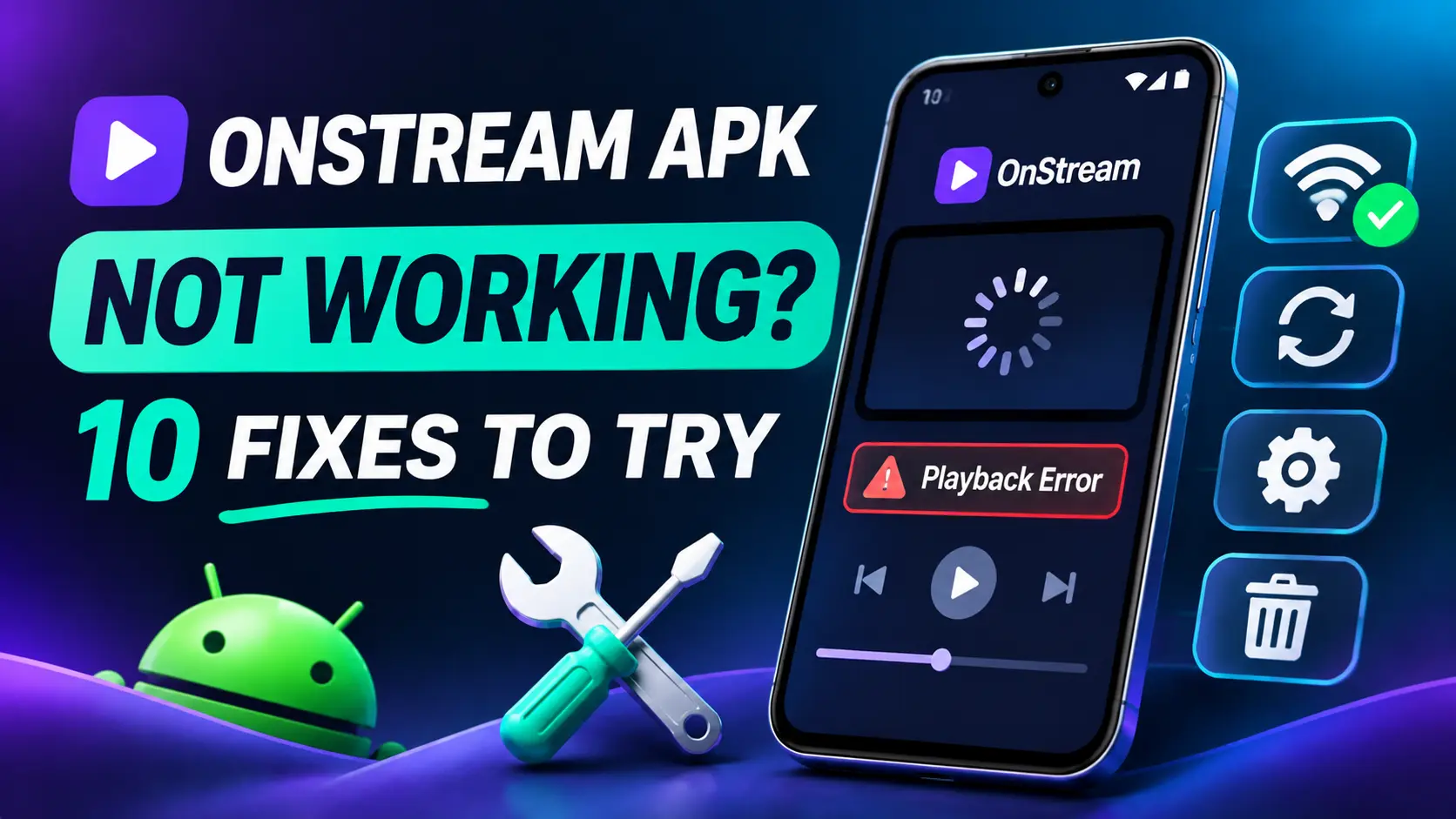
onstream apk not working
Opening OnStream and finding that nothing works can be frustrating. The app might stay on the loading screen, fail to play a video, show a connection error, or close unexpectedly.
These problems can have different causes. Sometimes the issue is related to your internet connection or Android device. In other cases, the application itself, its version, or the content source may be responsible.
If you are experiencing an OnStream APK not working problem, try the troubleshooting steps below before reinstalling the application. Each solution focuses on a common Android issue and explains what you can check.
Why Is OnStream APK Not Working?
There is no single explanation for every OnStream problem. Different applications and APK files can use the same name, so the cause depends on the exact version you have installed.
Some common reasons include:
- Weak or unstable internet connection.
- Temporary application errors.
- Outdated application version.
- Damaged temporary cache files.
- Insufficient device storage.
- Android compatibility problems.
- Unavailable streaming or content servers.
- Incorrect application configuration.
- Network restrictions or connection problems.
Identifying the type of error can help you choose the right solution instead of changing several settings unnecessarily.
10 Ways to Fix OnStream APK Not Working on Android
1. Check Whether You Have the Correct OnStream App
Before changing your Android settings, confirm which application you are using.
The OnStream name appears in connection with different applications. For example, a Google Play listing by Onstream LLC describes an Android TV content player. That does not establish that it is the same application as third-party movie-streaming APKs advertised online.
Check the following details:
- Application name and icon.
- Developer or publisher.
- Package name.
- Installed version.
- Original installation source.
If you installed an APK from an unfamiliar website, do not assume that it belongs to the developer you intended.
A modified or unrelated application may behave differently from the version described on its download page.
2. Check Your Internet Connection
A weak internet connection can cause loading delays, playback interruptions, and connection errors.
Start by checking whether other applications can access the internet.
Try these steps:
- Open your browser.
- Visit a website you normally use.
- Check whether the page loads properly.
- Open another streaming application if available.
- Compare its performance with OnStream.
If other applications also have connection problems, your internet connection may be responsible.
You can also restart your Wi-Fi connection or move closer to your router.
If you are using mobile data, check whether your data allowance is available and whether your device has a stable signal.
3. Switch Between Wi-Fi and Mobile Data
Sometimes an internet connection works for browsing but has trouble connecting to a particular service.
Switching networks can help identify whether the problem is related to your current connection.
For example:
- If you are using Wi-Fi, test mobile data.
- If you are using mobile data, connect to a trusted Wi-Fi network.
- Compare whether the same error appears on both connections.
If the application works on one network but not another, check the affected network’s settings.
A VPN, proxy, firewall, or network filter may also affect connectivity. If you use one, you can temporarily disconnect it to test the connection, provided doing so does not bypass legal or regional restrictions.
Do not install unknown network tools or change security settings simply to force an application to connect.
4. Restart Your Android Device
Temporary software problems can sometimes prevent an application from opening or responding correctly.
Restarting your device gives Android an opportunity to close background processes and start them again.
Follow these steps:
- Press and hold your phone’s power button.
- Select Restart.
- Wait for the device to turn back on.
- Open the application again.
- Check whether the problem continues.
If you are using Android TV, restart the television or streaming device using its normal power menu.
This is a simple first step before attempting more complicated troubleshooting.
5. Force Stop OnStream and Open It Again
If OnStream freezes, becomes unresponsive, or stays on the loading screen, force-stopping the application may help.
To do this:
- Open Android Settings.
- Select Apps.
- Find OnStream in the installed applications list.
- Open its App Info page.
- Select Force Stop.
- Confirm the action if requested.
- Open the application again.
The exact menu names may differ depending on your Android device.
Force stopping closes the current application process. It does not remove your saved application data.
If the problem was caused by a temporary application error, reopening it may resolve the issue.
6. Clear the Application Cache
Cached files help applications load certain information more quickly. However, temporary files can sometimes become outdated or damaged.
If OnStream is loading slowly or behaving unexpectedly, clearing its cache is worth trying.
Follow these instructions:
- Open Settings.
- Select Apps.
- Find OnStream.
- Open Storage or Storage & Cache.
- Tap Clear Cache.
- Reopen the application.
Important: Choose Clear Cache rather than Clear Data or Clear Storage.
Clearing application data can remove saved settings and other locally stored information. Only consider that option if you understand what will be erased.
7. Check for an Application Update
An older application version may have compatibility problems or known bugs.
If the original publisher provides a newer release, check its version information and update instructions.
Before installing an update:
- Confirm the developer’s identity.
- Use a verified distribution source.
- Check that the update is intended for your device.
- Review any available release information.
- Avoid modified APK files from unrelated websites.
Do not assume that a website advertising the latest OnStream version is providing an authentic release.
Also check whether your Android device has pending system updates.
An outdated operating system can sometimes cause compatibility problems with newer applications.
8. Check Your Device Storage and Compatibility
Low storage space can interfere with application updates, temporary files, and normal device operation.
Open your Android settings and check how much storage is available.
If space is limited, consider removing:
- Unnecessary downloaded files.
- Duplicate documents.
- Applications you no longer use.
- Temporary files from other applications.
Keep your personal photos and important documents backed up before removing anything.
You should also check your Android version.
Open:
Settings > About Phone > Android Version
Compare your device’s software version with the requirements provided by the verified application publisher.
If the application does not support your device, clearing the cache or restarting your phone will not solve the underlying compatibility problem.
9. Check Application Permissions and Android Settings
Some applications need specific permissions to perform their intended functions.
If a feature stops working after you change permissions, review the application’s settings.
To check:
- Open Android Settings.
- Select Apps.
- Choose OnStream.
- Open Permissions.
- Review the permissions currently allowed or denied.
Only grant permissions that are relevant to the application’s purpose.
Also check whether Battery Saver or Data Saver is restricting background activity.
These settings can affect how some applications use network access or run in the background.
Do not grant unnecessary access to contacts, SMS, microphone, or other personal information just to resolve a playback problem.
10. Reinstall the Application Only If Necessary
If the previous steps do not help, reinstalling may be an option.
However, do not rush into removing the application.
First, verify that you can identify a trustworthy source for the correct application and that reinstalling will not remove information you need.
If you proceed:
- Review whether the application stores important local data.
- Uninstall the existing application.
- Restart your device.
- Obtain the application from its verified publisher or a trusted app store.
- Check the file and publisher information before installation.
- Install only if Android permits it without requiring you to bypass a security warning.
Avoid downloading replacement APK files from random websites.
If the original application or its content service is unavailable, reinstalling an identical file is unlikely to solve the problem.
How to Fix Specific OnStream Problems
Different errors may require different troubleshooting steps. Here are a few examples.
OnStream Is Stuck on the Loading Screen
If the application opens but never reaches its main screen, try:
- Checking your internet connection.
- Restarting your Android device.
- Force-stopping the application.
- Clearing its cache.
- Checking whether the service is available.
If the loading problem continues across different networks, the issue may be outside your device.
OnStream Videos Keep Buffering
Frequent buffering can occur when a video cannot load data quickly enough.
Try the following:
- Move closer to your Wi-Fi router.
- Test another internet connection.
- Pause other downloads using your network.
- Restart your router.
- Select a lower playback quality if the application provides that option.
If only one video has a playback problem, the source of that particular video may be responsible.
OnStream Shows a Connection Error
First, check whether your device can access other online services.
If the internet works normally, the problem may involve the application’s server, content provider, or network configuration.
Check for information from the verified developer before changing advanced network settings.
OnStream Closes Unexpectedly
An application that repeatedly crashes may have a compatibility problem or a damaged installation.
Try force-stopping it, restarting your device, and clearing the cache.
If the crashes continue, check the application’s compatibility requirements and contact its developer if reliable support is available.
OnStream Has a Black Screen or No Sound
For a black screen, restart the application and check whether the problem affects every video or just one.
For sound problems, check:
- Your device’s media volume.
- Bluetooth audio connections.
- The selected audio output.
- The video’s audio track, if available.
If the problem affects only one video, its media source may be responsible rather than your Android device.
What If None of These Fixes Work?
Sometimes the problem is not caused by your phone or internet connection.
An application may depend on external servers, content providers, or other online services. If one of those services becomes unavailable, users may experience loading failures or playback errors even when their devices are working correctly.
In that situation:
- Check whether the verified developer has published an announcement.
- Look for official troubleshooting information.
- Avoid installing unofficial replacement versions.
- Keep Android security protection enabled.
- Consider using an authorized alternative if the service is no longer available.
Remember that reinstalling an application cannot restore a server or content source that is no longer operating.
Frequently Asked Questions
Why is OnStream APK not working today?
Possible causes include an unstable internet connection, a temporary application problem, an incompatible version, or an unavailable external service. The exact reason depends on the application and error you are experiencing.
How do I fix OnStream when it is stuck on loading?
Check your internet connection, restart your device, force-stop the application, and clear its cache. If the issue continues, check whether the application or its external service is available.
Why does OnStream keep buffering?
Buffering can result from slow internet speeds, unstable Wi-Fi, network congestion, or problems with the video source. Test another network and lower the playback quality if that option is available.
Why does OnStream keep crashing on Android?
An application may crash because of compatibility problems, damaged temporary files, insufficient storage, or software errors. Restart your device and try clearing the application’s cache.
Will clearing the OnStream cache delete my data?
Clearing the cache removes temporary files. It is different from clearing application data, which may remove saved settings and locally stored information.
Should I download another OnStream APK if the app stops working?
Not immediately. First, identify the exact application and check its publisher and original distribution source. Installing a different file with the same name can introduce additional security and compatibility risks.
Can an internet connection cause OnStream playback errors?
Yes. An unstable connection can interrupt video loading and playback. However, problems with the application’s external content source can produce similar symptoms.
Does reinstalling OnStream fix every problem?
No. Reinstallation may resolve certain local installation problems, but it cannot fix an unavailable server, unsupported device, or external content-source failure.
Final Thoughts
When OnStream APK is not working, start with the simple checks. Test your internet connection, restart your device, force-stop the application, and clear its cache.
If those steps do not help, check the application version, Android compatibility, and availability of the service itself.