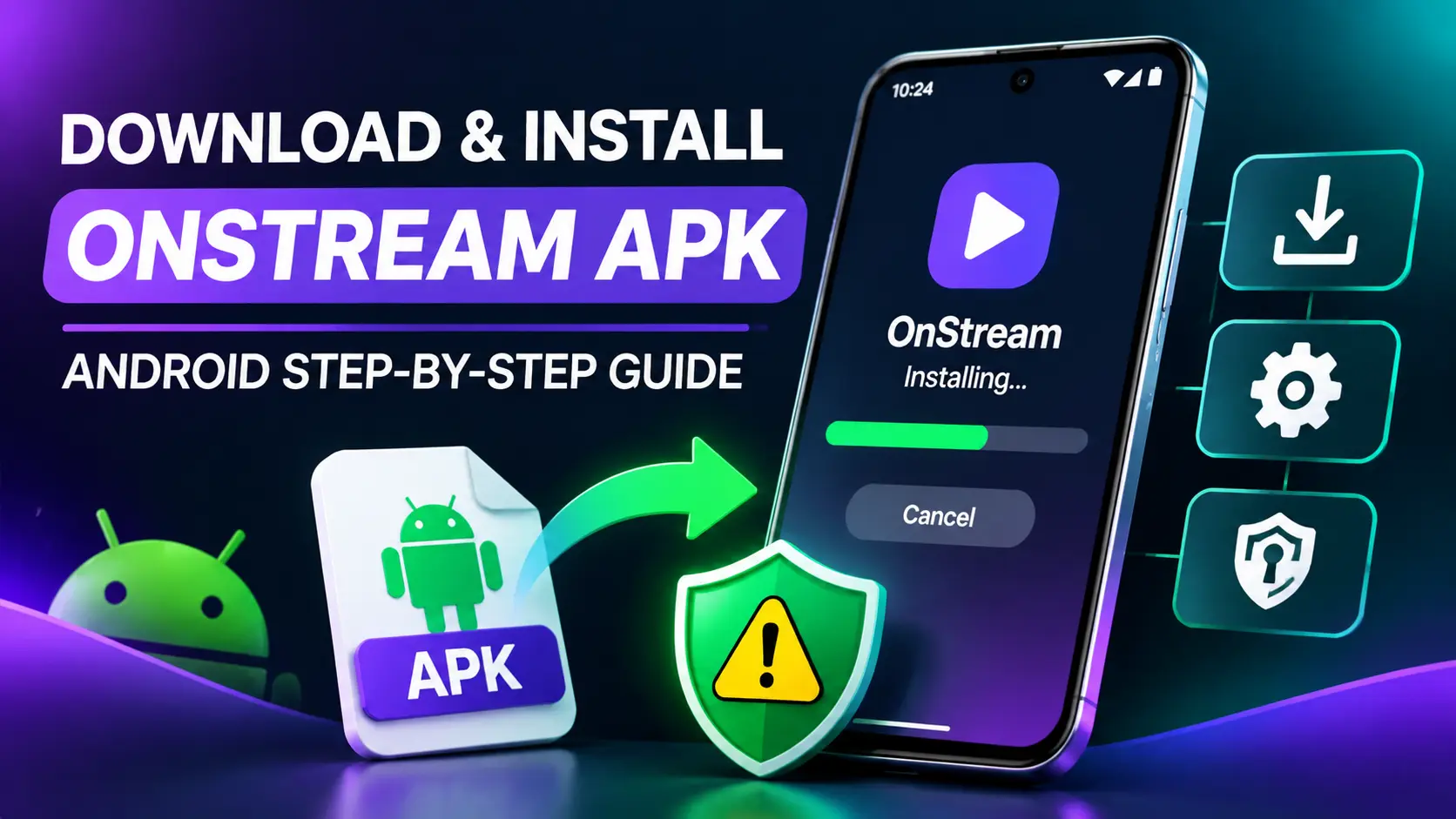
download install onstream apk android
Installing an Android application outside the Google Play Store is not difficult, but choosing the right file takes some care. If you are searching for an OnStream APK download, you should first make sure that the file belongs to the application you actually want.
Several websites use the OnStream name to promote Android entertainment applications. However, an app name or logo does not prove that a download is genuine. It is important to check the developer, download source, file details, and Android security warnings before installing anything.
In this guide, you will learn how to check an OnStream APK, download an installation file, enable the required Android setting, and complete the installation. You will also find solutions to common installation problems.
Before Downloading OnStream APK: Identify the Right App
Before downloading anything, make sure you understand which OnStream application you are looking for.
An application named OnStream is listed on Google Play by Onstream LLC. Its description identifies it as a premium content player for Android TV, designed for managed screens, device pairing, and synchronized schedules.
This does not establish that it is the same product as the movie and TV streaming APK promoted by various third-party download websites.
If you are looking for a particular entertainment application, compare its developer name, package name, features, and official distribution information before proceeding.
Never install a file simply because its name matches the application you searched for.
What You Should Check Before Downloading an APK
A little preparation can help you avoid downloading the wrong or modified application.
1. Verify the Download Website
Start by checking the website offering the OnStream APK.
Look for clear information about the publisher, application version, release date, and original download source.
Pay attention to these warning signs:
- Several download buttons that lead to unrelated websites.
- Repeated redirects and unexpected pop-ups.
- No clear developer or publisher information.
- Conflicting version numbers.
- Requests to install additional applications.
- Claims such as 100% safe or virus-free without supporting evidence.
A professional-looking website is not proof that its files are genuine.
2. Check the Application Version
Before downloading, look for the version number and release information.
The version should be clearly identified, and the publisher should provide a way to confirm that it is a genuine release.
Avoid assuming that the file with the newest date or highest version number is automatically the correct one.
3. Check Your Android Device
Your phone or tablet should have enough free storage and a compatible Android version.
Check your Android version by following these steps:
- Open Settings.
- Scroll down to About Phone or About Device.
- Find Android Version.
- Check the available storage on your device.
The exact menu names may differ between Samsung, Xiaomi, Google Pixel, and other Android devices.
Do not assume that every OnStream APK build supports every Android device. Check the requirements provided by the verified publisher.
How to Download OnStream APK on Android
Once you have identified a trustworthy source and verified the application details, you can proceed with the download.
Follow these steps:
Step 1: Open your browser
Open Chrome or another trusted browser on your Android device.
Step 2: Visit the verified publisher’s website
Use the developer’s verified distribution page, if one is available. Confirm that the website belongs to the actual publisher rather than a third-party website using a similar name.
If you cannot establish the publisher’s identity or verify the download source, it is safer not to download the file.
Step 3: Locate the APK file
If the publisher provides a verified APK release, check its version number, file details, and release information.
Make sure you understand whether the download is a standard APK or another package format that requires a different installation process.
Step 4: Start the download
Select the verified download option and wait for the file to finish downloading.
Avoid clicking unrelated advertisements or additional download buttons.
Step 5: Find the downloaded file
Open your phone’s Downloads folder or file manager.
Look for the APK file you downloaded. Check its filename and file size against the information provided by the publisher, where available.
Do not open it until you have completed your security checks.
How to Install OnStream APK on Android
Android normally restricts application installations from sources outside Google Play.
If you have independently verified the APK and decided to proceed, Android may ask you to allow installation from the application handling the download.
The setting is usually called Allow from this source.
Step 1: Open the Downloaded APK
Open your Downloads folder and tap the APK file.
If Android displays a message asking for permission to install applications from this source, select Settings to review the relevant option.
Step 2: Allow Installation From Your Browser
Depending on your Android version, you may see an option called Allow from this source.
You can also find it manually:
- Open your phone’s Settings.
- Select Apps.
- Open Special app access.
- Select Install unknown apps.
- Choose the browser or file manager you used.
- Review the Allow from this source setting.
Only grant this permission when necessary and only to the application you are using to open the verified file.
Step 3: Return to the APK File
Go back to your Downloads folder and select the APK again.
Android should display the installation screen if the file is compatible and the installation is permitted.
Read the information carefully before continuing.
If Android displays a security warning or identifies the developer as unverified, do not ignore it. Stop and investigate the source.
Step 4: Complete the Installation
If Android permits the installation and you have verified the file, follow the on-screen instructions.
Wait for the installation process to finish.
If the process completes, Android may display an Open option. You can use it to launch the application.
Step 5: Turn Off Installation Permission
Afterward, return to:
Settings > Apps > Special app access > Install unknown apps.
Select the browser or file manager and turn off Allow from this source.
This helps prevent accidental installations from that application in the future.
Important: Android menu names and installation restrictions vary by device, software version, and region. Follow the security instructions shown on your device rather than trying to bypass them.
How to Check OnStream APK After Installation
Installing an application does not automatically mean that it is genuine or safe.
Before using a newly installed application, take a moment to review its behavior.
Check the Application Information
Open Settings and select Apps.
Find the installed application and review the available information.
Check whether its name and developer details match the information you verified before installation.
Review App Permissions
Open the Permissions section.
Pay attention to requests involving:
- Contacts and personal information.
- Camera and microphone.
- Location.
- SMS and phone access.
- Photos and files.
Consider whether each permission is necessary for the application’s intended purpose.
Do not grant unnecessary access simply to make an application work.
Run Google Play Protect
Google Play Protect can check applications installed from sources outside Google Play and warn you about potentially harmful software.
To run a security check:
- Open Google Play Store.
- Tap your profile icon.
- Select Play Protect.
- Start a scan if the option is available.
- Review any warnings or recommendations.
Keep Scan apps with Play Protect enabled.
A clean scan is useful, but it is not a guarantee that an application is completely safe.
Common OnStream APK Installation Problems and Solutions
Sometimes an APK does not install on the first attempt. The reason may be related to the file, device compatibility, or Android security settings.
Here are some common problems and what to check.
1. App Not Installed Error
Android may display an App Not Installed message when the APK is incompatible, damaged, or conflicts with an existing application.
Try these checks:
- Confirm that the APK supports your Android version.
- Check whether the download completed successfully.
- Make sure enough storage is available.
- Check whether an existing version uses a different signing certificate.
Do not remove an existing application or its data without understanding the consequences.
2. Installation Is Blocked
Android may block an installation because the file comes from an unverified developer or has triggered a security warning.
Check the warning carefully.
Do not disable Google Play Protect or use an installation bypass to force an unfamiliar application onto your device.
If the publisher cannot provide reliable verification, avoid installing the file.
3. APK File Will Not Open
If tapping the downloaded file does nothing, check its format.
A standard APK file can normally be opened through a compatible Android package installer. Other formats, such as XAPK or split APK packages, may require different installation methods.
Also check whether the download is incomplete or damaged.
4. Not Enough Storage Space
Android needs available storage to install applications and process their files.
Open Settings and check your storage.
Remove unnecessary downloads or files if needed, but avoid deleting personal photos, documents, or application data without a backup.
5. Application Crashes After Installation
An application may crash because of device incompatibility, a damaged installation, missing components, or problems within the application itself.
Restart your device and check whether the publisher provides a compatible version.
If the problem continues, uninstall the application and avoid downloading replacement files from unrelated websites.
Is It Safe to Install OnStream APK Outside Google Play?
Installing an APK outside Google Play carries additional risks because the file may not have gone through the same distribution and review process as an application obtained through the Play Store.
The risk depends on the actual file, its publisher, and how it behaves after installation.
Before proceeding, consider the following:
- Can you identify the actual developer?
- Can you verify the original download source?
- Is the file’s digital signature trustworthy?
- Are its permissions reasonable?
- Does Google Play Protect display any warning?
- Is the application distributed with proper authorization for the content it provides?
If you cannot answer these questions, consider using an established application from Google Play instead.
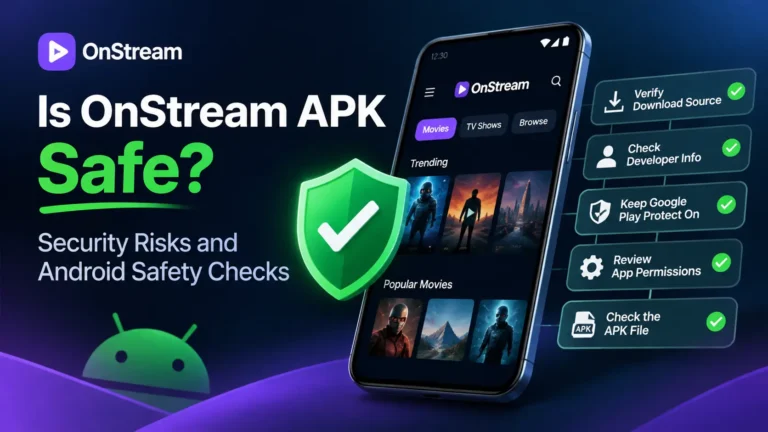
For more information, read our guide: Is OnStream APK Safe? Security Risks and Android Safety Checks.
Frequently Asked Questions
How do I download OnStream APK on Android?
First, identify the exact application and verify its publisher and download source. If a trustworthy publisher provides an APK, you can download it through your Android browser and check the file before opening it. Do not rely on unverified websites simply because they advertise the latest version.
How do I install an APK file on Android?
Download a verified APK, open it through your file manager, and follow Android’s installation instructions. Your device may ask you to allow installation from the browser or file manager. Only grant that permission when necessary and turn it off afterward.
Is OnStream available on Google Play Store?
A Google Play application named OnStream is listed by Onstream LLC. Its description identifies it as a managed content player for Android TV. This listing should not automatically be treated as the same product as third-party movie-streaming APK downloads.
Why does Android block my APK installation?
Android may block an installation because the developer is unverified, the file is incompatible, or a security system has identified a potential risk. Read the warning and verify the source before taking any further action.
Can I install OnStream APK without enabling unknown sources?
If an APK is distributed outside Google Play, Android may require permission for the browser or file manager to install it. The exact process depends on your device and Android version. Do not change security settings to bypass a warning about a potentially harmful application.
Does Google Play Protect scan APK files?
Yes. Google Play Protect checks applications from Google Play and can also examine applications installed from other sources. It may warn about, disable, or remove applications identified as harmful.
What should I do if OnStream APK is not installing?
Check the file format, Android compatibility, available storage, and whether the download is complete. If Android displays a security warning, investigate it rather than disabling protection.
Final Thoughts
Downloading and installing an APK on Android is a straightforward process, but choosing the correct file is the most important part.
Before downloading OnStream APK, verify the application identity, developer information, and original source. Follow Android’s installation instructions carefully, review permissions, and keep Google Play Protect enabled.